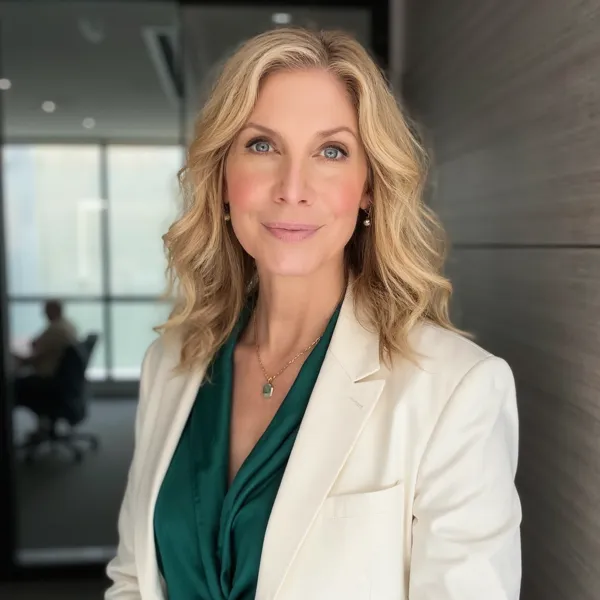
How to Create AI Headshots in Adobe Express
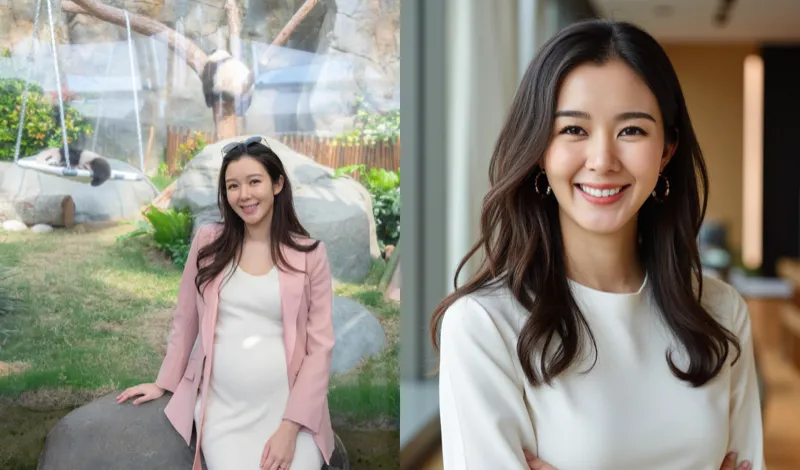
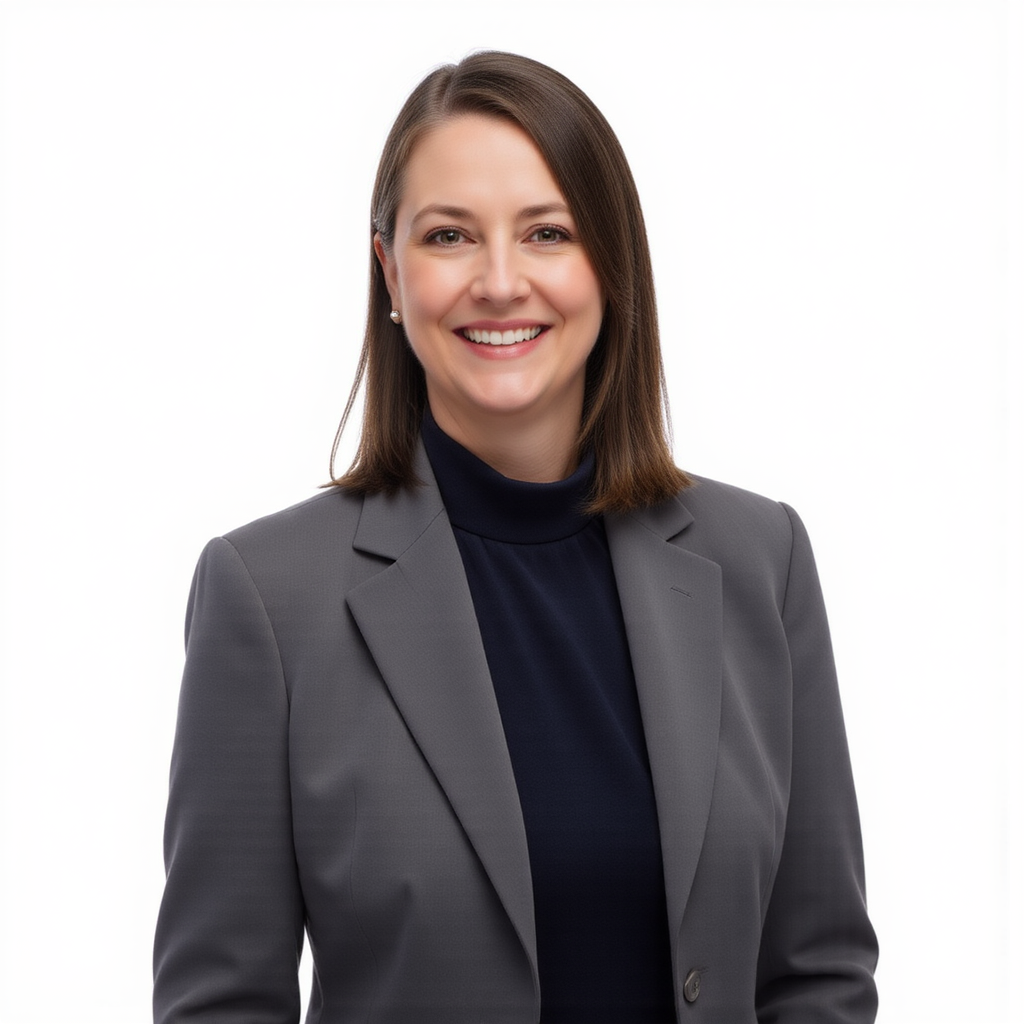
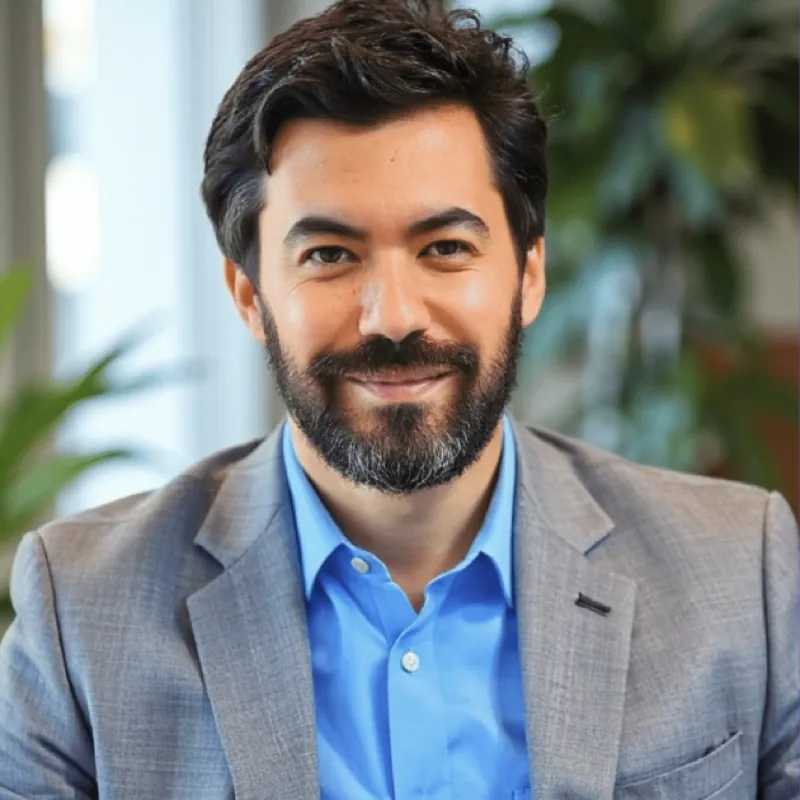
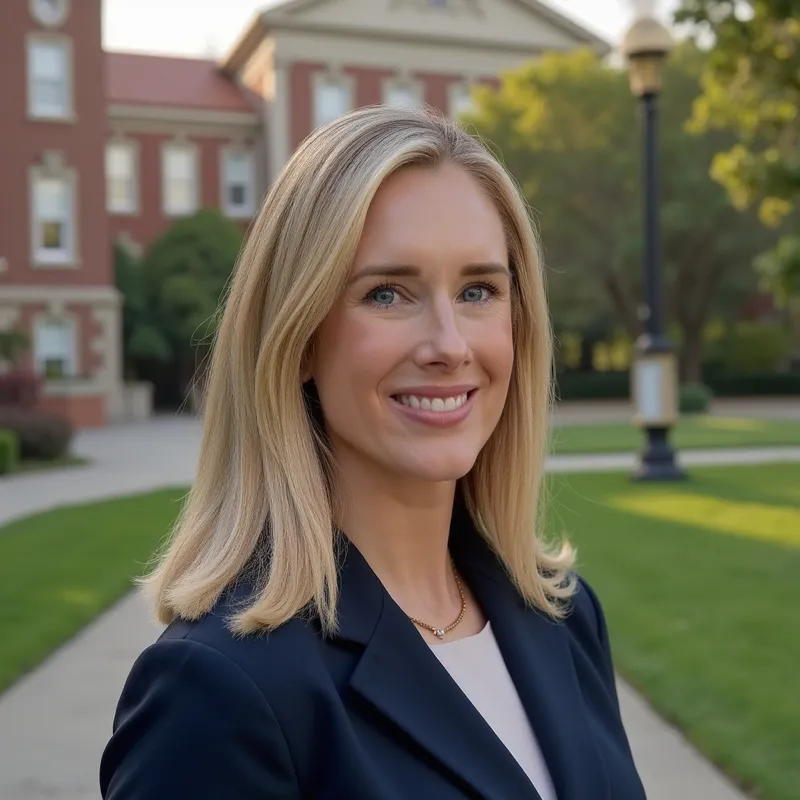
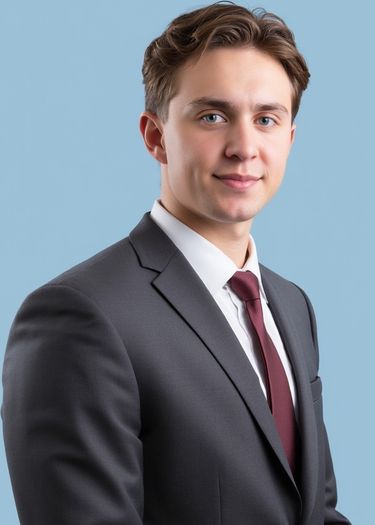
You can now create professional AI headshots directly inside Adobe Express using the Headshots add-on – the only AI headshot generator available on Adobe Express. Upload your selfies, name your model, and get 40 studio-quality headshots in about 20 minutes. No photographer, no studio, no leaving Adobe Express.
No other add-on on Adobe Express offers AI headshot generation. The Headshots add-on trains a personalized AI model on your face, producing headshots that are virtually indistinguishable from real studio photography. This guide walks you through the entire process step by step.
Step 1: Open the Headshots add-on in Adobe Express
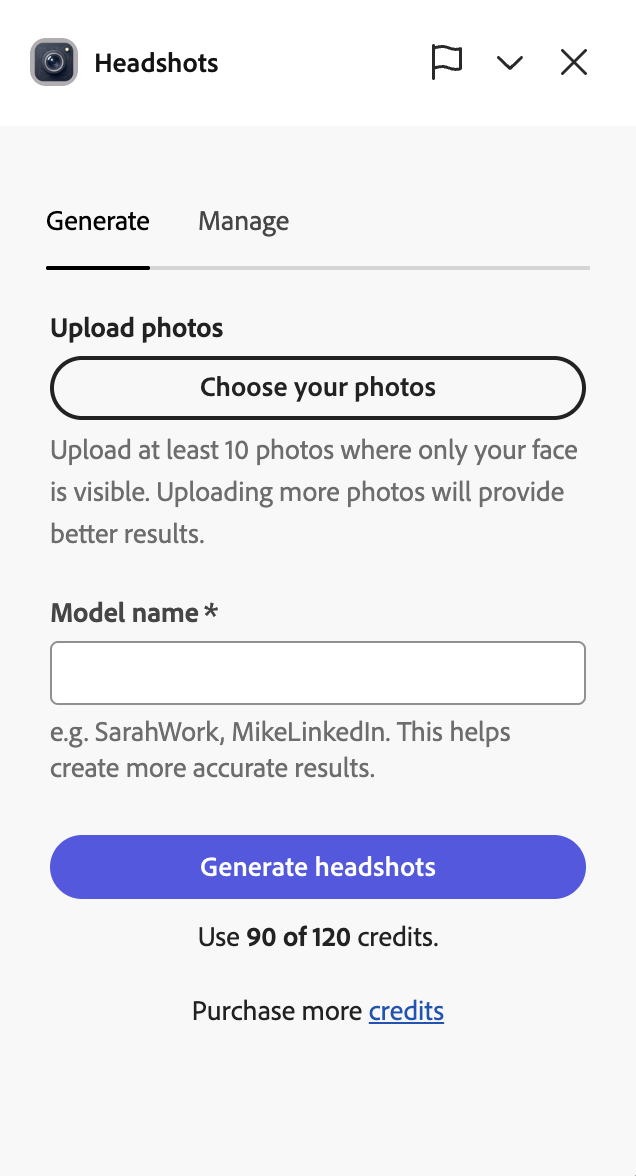
Go to the Headshots add-on page on Adobe Express or search for “Headshots” in the Adobe Express add-ons marketplace. You will see the add-on panel with two tabs: Generate and Manage.
Step 2: Upload your selfies
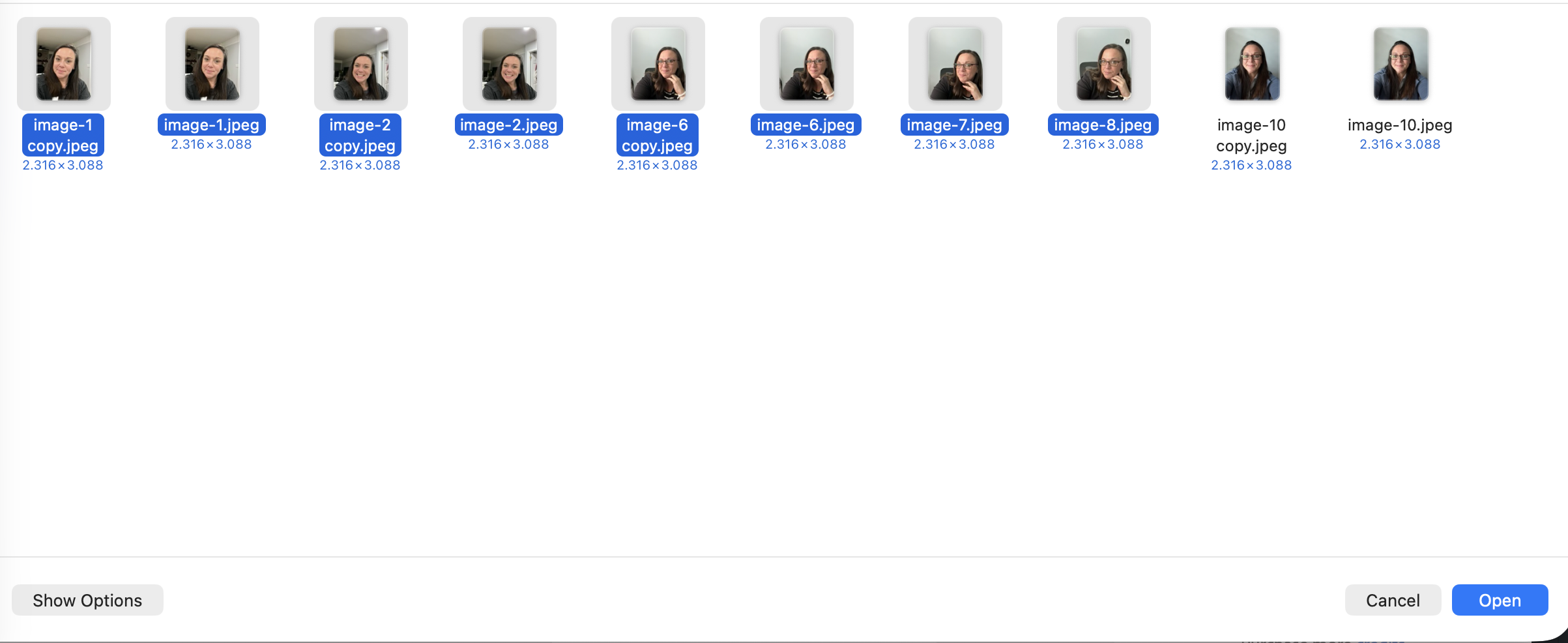
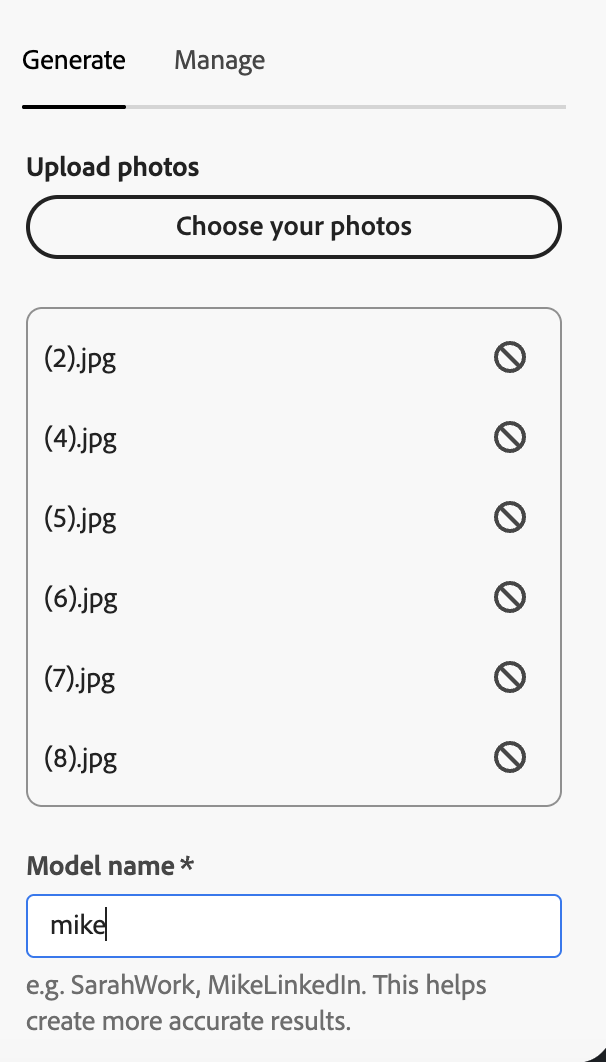
Click “Choose your photos” to upload your selfies. The add-on asks for at least 10 photos where only your face is visible. Uploading more photos provides better results.
For the best results, include selfies from different angles (front, left, right), in different outfits, and with varied backgrounds. Phone selfies in natural daylight work perfectly. Avoid heavy filters, sunglasses, or hats that hide your face.
Step 3: Name your model
Enter a model name (any name you want, like “SarahWork” or “MikeLinkedIn”). This helps the AI create more accurate results and lets you find and fine-tune your model later with custom prompts.
The model name is important because once your headshots are generated, you can go back to your model at any time and generate additional headshots using the custom prompt system. Think of it as your personal AI photographer that remembers your face.
Step 4: Generate your headshots
Click the “Generate headshots” button. The generation costs 90 credits and produces 40 professional headshots. The AI trains a personalized model on your face, which takes about 20 minutes.
You do not need to keep the tab open. You will receive an email notification when your headshots are ready, so you can continue working on your Adobe Express designs or do something else entirely.
Step 5: View and use your headshots
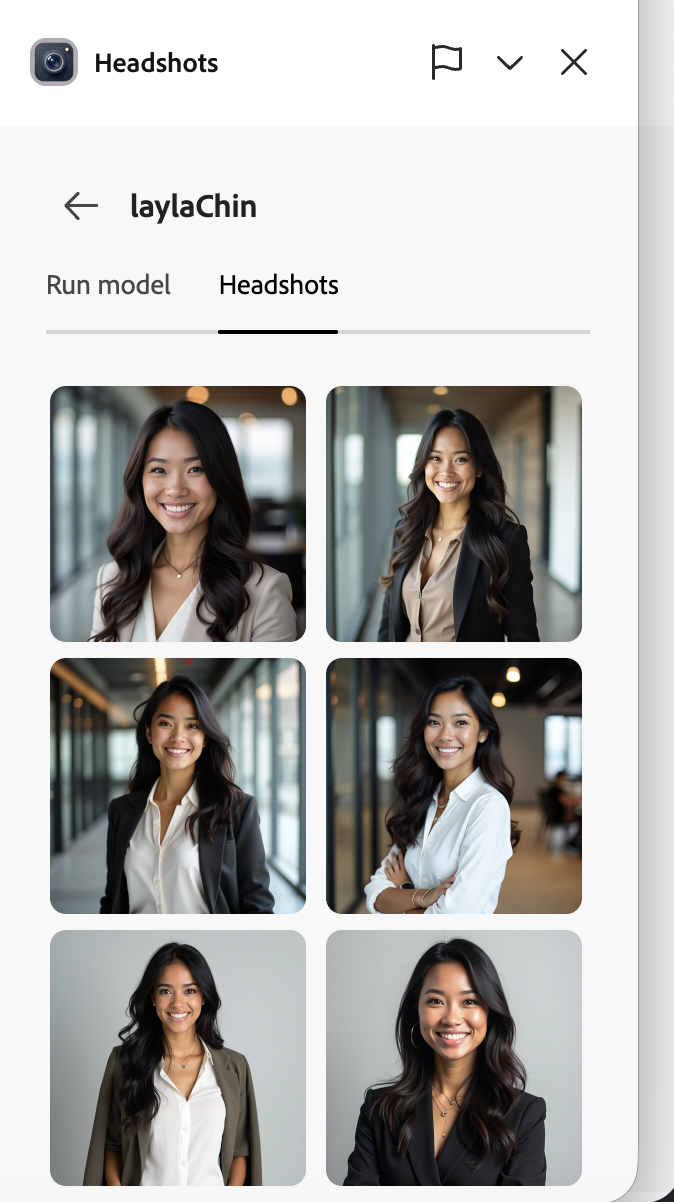
Once generation is complete, go to the Manage tab and select your model. Switch to the Headshots tab to see all 40 generated headshots in a grid. Click any headshot to select it, then drag it directly into your Adobe Express design or download it.
Each headshot is high resolution and ready to use on LinkedIn, your company website, business cards, email signatures, or any other platform.
Step 6: Generate custom headshots with prompts
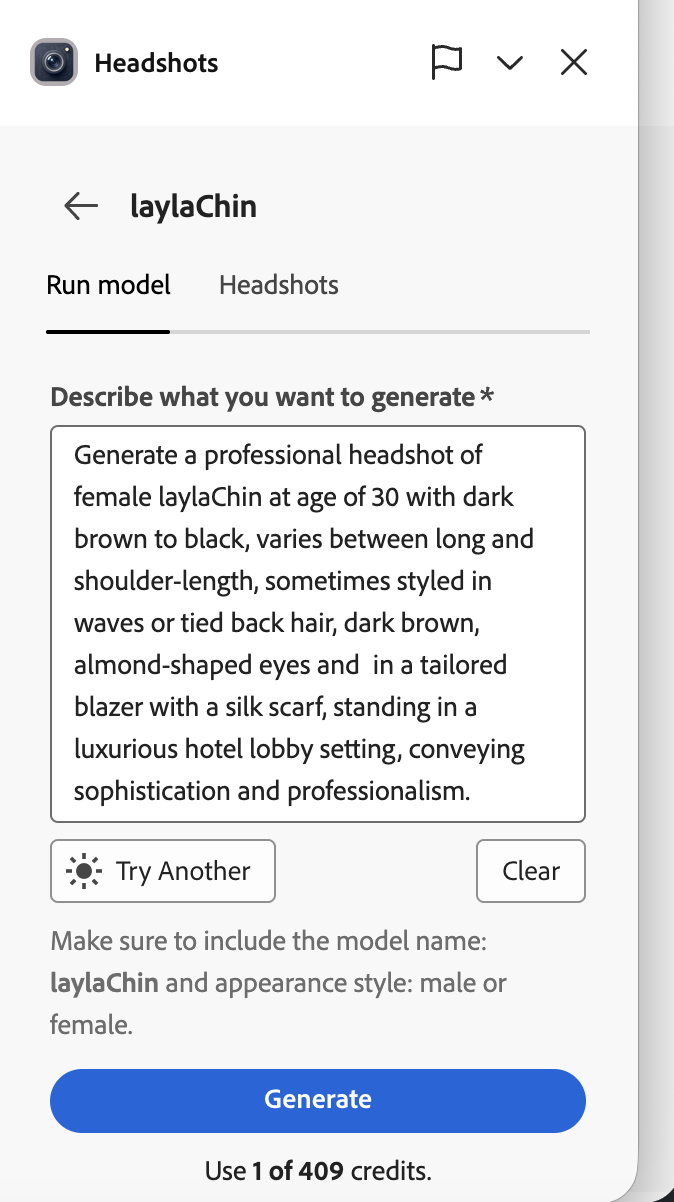
This is where the Headshots add-on truly stands out. After your initial 40 headshots are generated, switch to the “Run model” tab and write custom prompts to generate exactly the headshot you have in mind.
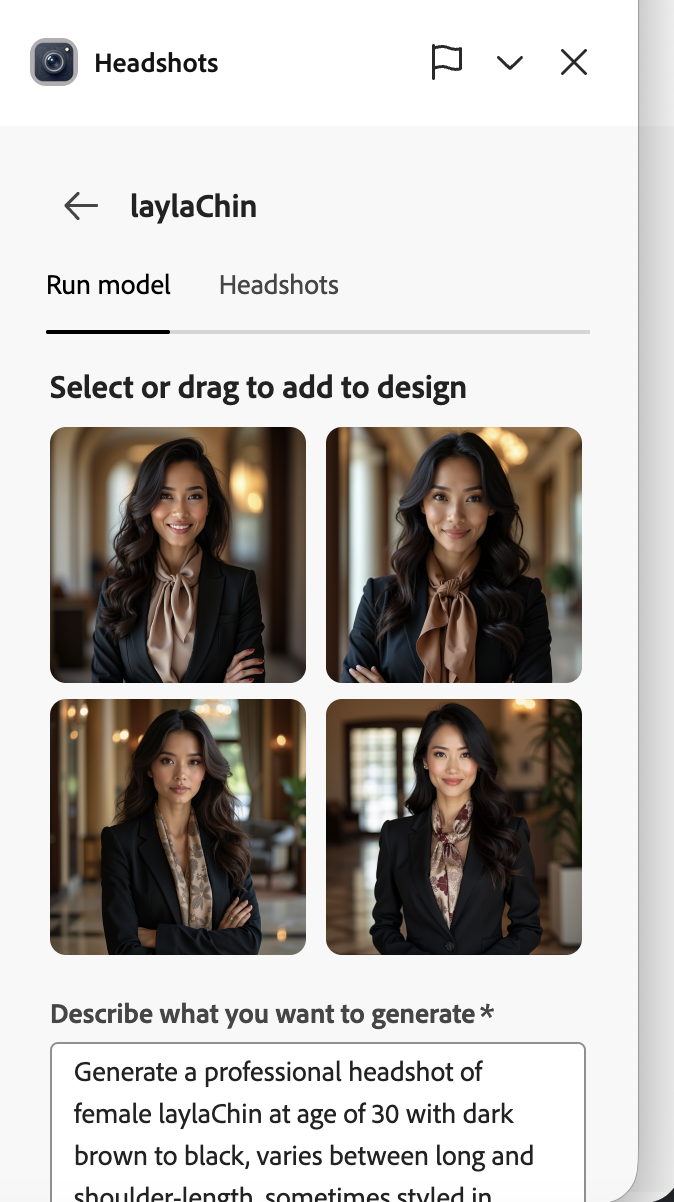
Describe what you want: the outfit, the background, the setting, the mood. For example: “a professional headshot in a tailored blazer with a silk scarf, standing in a luxurious hotel lobby setting, conveying sophistication and professionalism.”
Not sure what to write? Click the “Try Another” button to get AI-generated prompt suggestions you can use as-is or customize. Each custom prompt costs just 1 credit and generates 4 headshots. No other add-on on Adobe Express offers anything like this.
The only AI headshot add-on on Adobe Express
Unlike other design platforms where you have to sort through multiple headshot tools of varying quality, Adobe Express has exactly one: the Headshots add-on by AiProPortrait. And it is built specifically for producing the most realistic AI headshots possible:
- Personalized model training. The AI trains a custom model on your specific face. Your hair color, skin tone, bone structure, and expressions are captured precisely.
- Natural skin texture. No plastic, over-smoothed skin. The AI preserves natural texture so the results look like real photographs, not renders.
- 40 headshots per generation. You get a full library of professional headshots with varied outfits, backgrounds, and compositions from a single generation.
- Custom prompt system. After the initial generation, describe exactly what you want and get 4 headshots for just 1 credit. The “Try Another” button gives you prompt inspiration so you never start from a blank page.
- Works inside Adobe Express. Generate headshots and drag them directly into your designs. No switching between apps or downloading and re-uploading files.
Tips for the best Adobe Express headshots
Upload the right photos
Upload at least 10 photos with variety. Different angles (front, three-quarter left, three-quarter right), different outfits, and different backgrounds give the AI more data to work with. Natural daylight near a window produces the best input quality. See our headshot tips guide for more detail.
Choose a descriptive model name
Your model name helps you manage multiple models later. Use something memorable like your name plus the context (“MikeLinkedIn” or “SarahWork”). You can always come back to this model and generate more headshots using custom prompts.
Use custom prompts for specific needs
After your initial 40 headshots, use the prompt system for any specific variations you need. Want a headshot with a particular outfit or setting that was not in the initial batch? Describe it in the prompt. At 1 credit for 4 headshots, you can experiment freely.
Adobe Express headshots FAQ
How do I get AI headshots in Adobe Express?
Open the Headshots add-on in Adobe Express (search for it in add-ons or go directly to the add-on page). Upload at least 10 selfies, enter a model name, and click “Generate headshots.” You will get 40 professional headshots in about 20 minutes.
How much do Adobe Express AI headshots cost?
The initial generation of 40 headshots costs 90 credits. After that, you can generate additional custom headshots for just 1 credit each (4 headshots per prompt). Credits are purchased through the add-on.
How long do Adobe Express headshots take?
About 20 minutes for the initial batch of 40 headshots. The AI trains a personalized model on your face, which is why it takes longer than a simple filter but produces much more realistic results. Custom prompt headshots generate in about a minute each. You will receive an email when your headshots are ready.
Can I use Adobe Express headshots on LinkedIn?
Yes. The headshots are high-resolution and designed for professional use. They work perfectly for LinkedIn profiles, company websites, email signatures, business cards, and any other professional platform.
Are there other AI headshot add-ons on Adobe Express?
No. The Headshots add-on by AiProPortrait is currently the only AI headshot generator available on Adobe Express. It is purpose-built for creating realistic, professional headshots with personalized model training and a custom prompt system.
Do the headshots look real?
Yes. The add-on trains a personalized model on your photos, so the results preserve your exact features, natural skin texture, and realistic lighting. The headshots are virtually indistinguishable from studio photography. Check out our headshot examples to see the quality.
Prefer Canva? The Headshots app is also available on Canva with additional features like industry-specific styles and brand colors. See the Canva headshots guide.
Get your AI headshots now
Open the Headshots add-on in Adobe Express and get 40 professional headshots in 20 minutes. Or try it directly on our website.